Sunday, May 10, 2020

Sorting and Top N Analysis in Tableau

Sorting in Tableau - 

Lets Understand sorting in Tableau by Creating a simple Example -

1. I have already extracted data of few customer, Now the first step is go to your  worksheet and Choose a Field like I choose Customer Name from dimension and drop in Column Shelve
2. Add Sum(Sales) in Row Shelve.
3. Click on Customer Name (Drop down)in Column Shelve and Choose Sort
Sorting in Tableau Step 1


4. Now in Sort Popup Window Choose the Sort by option, like Data Source order, Alphabetic, Field, Manual or Nested. I want my Visualization sorted based on Sum(Sales), so I choose Field Option.
5. Now Choose type of sort you want like Ascending or Descending radio button as per your requirement.
6. Now Choose Field Name and the aggregate Function, like I want sorting based on Sum of sales amount so Choose Sales in Field Name and Sum in Aggregation.

Sorting in Tableau Step 2
You can also do sorting by Clicking on sort button available near the Axis Caption Name (See small little video available below)
Sorting in Tableau Step 3


Top N Analysis - 

Suppose we have to perform Analysis based on top 10 cities based on Profit. so here are few steps to do that - 
We need to create a report of top 10 Cities based on Profit and we also want to showcase Sales of those cities in Graph

1. Create a Set of Top 10 Cities based on Profit see in Below images  - 
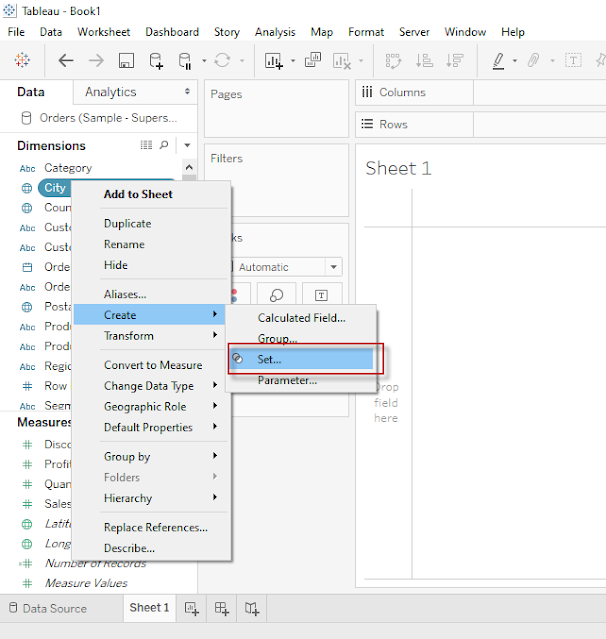
Top N Analysis step 1


2. Give any Name for your newly created Set, and select Top 10 in By Field Section from Create Set pop - 

Top N Analysis step 2

3. Add Newly created Field from sets to Column Shelve and add Sales and Profit in Row Shelve 

4. Click on Drop down for Sum(Profit) as shown in below image and Choose Dual Axis to create a Dual Axis Chart
  
Top N Analysis step 3

5. See Below Analysis created by above step, it has Sales and Profit for top 10 Cities(Who has highest profit)

Top N Analysis step 4

Labels: , , ,

Saturday, May 9, 2020

Different Type of Filters in Tableau

Filters are generally used to restrict the number of records available in data source. In other words Filters are use to create subset of Data. In Tableau there are Filters available at various level for different purposes. 

Given below are the Filter types available in Tableau

  • Extract Filters
  • Data Source Filters
  • Context Filters
  • Dimensions Filters
  • Measure Filters


Extract Filters :

When we use extract data instead of Live data from data source then we can apply filters at Extract level. 

We already know how to Make a connection to data source and what is the difference between live and Extract data in Tableau. Now we are going to learn Extract filters through simple steps, see below images and description - 

Click here to Read more »

Labels: , , ,

Thursday, May 7, 2020

Learn Creating Sets in Tableau

What is Set

Set is a well defined collection of Values.

In Tableau, Set is a Custom Field which we can create to hold some or all Values of a Column based on a Particular Condition.

We Can create Set out of Variable by following methods
  • Selecting data from List
  • Based on a condition (It includes Condition based on another Field or it could be a Range of Values, or we can also create Formula for that)
  • By Selecting Top/Bottom Number of values.
We can create set of Dimensions only, but condition can be based on Measures as well.

For Example-  We want to select/Create a set of those Cities who has sales (Measure) more than 50Lac or we want to create set of Top 10 Cities based on Profit.

How to create Set in Tableau - 

Click here to Read more »

Labels: , , ,

Sunday, May 3, 2020

Types of Chart available in Show Me Pane - Tableau

Tableau is a very advance Data Analysis and Visualization tool, It makes the data analysis very easy through so many techniques without writing any code. One of the very advance feature of Tableau is "Show Me". In "Show Me" we can choose and apply required view on existing data in worksheet.

Those view can be any like Pie Chart, Heat Map, Globe Map, Horizontal/stacked/Side-by-side Bars, Tree Map, Circle View, Area Chart, Gant Chart and many more.

Click here to Read more »

Labels: , , ,

Creating First Visualization in Tableau

Hello Folks - Now we are able to understand basic Concepts of Tableau i.e. What is Tableau and how to start working on this. we know the Component of Tableau Desktop, Now its time to Learn how to create Visualization in Tableau Desktop, also i am going to show how to publish your work on Tableau Public.

When we install Tableau Desktop, it also provide Sample Data of a Superstore for learning purpose, we are going to use that data for this tutorial.

Click here to learn How to connect to a Data source in Tableau then proceed further for Visualization.

After connecting to Sample Data and open Orders in Data Pane, Click on Extract button to Extract
Click here to Read more »

Labels: , , ,